









Reseller API - User authentication process
Starting from 2024, Chimera license and credit purchases will require end-user verification on reseller websites, to prevent any fraud or misuse. This means, the users need to log in before checkout, to verify their account.
This document created at Jan 26, 2024, 8:14:40 AM and modified at Oct 24, 2026, 5:12:46 PM.
 Back

Your selling procedure will not change but reseller transactions will only be completed if the users authenticated and the purchase was initiated on your reseller website, registered in Reseller settings at chimeratool.com.cn.
Resellers have 3 simple steps to do
1. Make sure the new user authentication method is enabled.
Look for the following checkbox at Reseller settings:
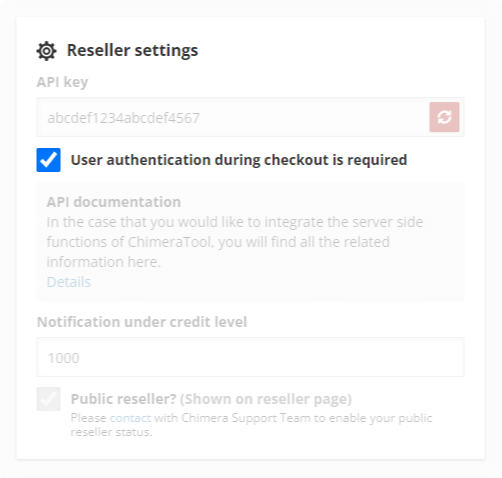
Starting from Q2 2024, this setting will be automatically enabled for all resellers by default and after that it cannot be disabled, to enforce secure transactions.
2. Place the following button next to the Chimera username input field:
To do so, embed the button above and this JavaScript code to your website, right after the username input field:
IMPORTANT: You need to modify this code to make it work on your website.
The chimeraConfig.hash property is required.
Also one of chimeraConfig.usernameElementId or chimeraConfig.usernameElementName property is required.
Explanation of the chimeraConfig object properties:
| hash | The md5 hash of your Chimeratool reseller username. In this case MD5('chimeratool') = 78ae231c5ffc8c26c5570e1c8cdd1e67. Where 'chimeratool' is the reseller username. You can use https://www.md5.cz/ free online tool for MD5 hash generation. |
| usernameElementId | The id attribute of your Chimera username input HTML element on your website. In our example the value of the id attribute is 'username'. |
| usernameElementName | The name attribute of your Chimera username input HTML element on your website. In our example the value of the name attribute is 'username'. |
What this code does, is to place the following button retrieve the Chimera username from your website, combine it with your unique ID hash and communicate with chimeratool.com.cn via API and popup window, for secure user verification.
The script uses plain Javascript code.
3. The above code registers a new JavaScript event, named chimeraAuthSuccess - as the above code suggests, you need to listen to this event by using JavaScript eventListener, to only allow users to proceed with checkout when this response is successful.
Examples
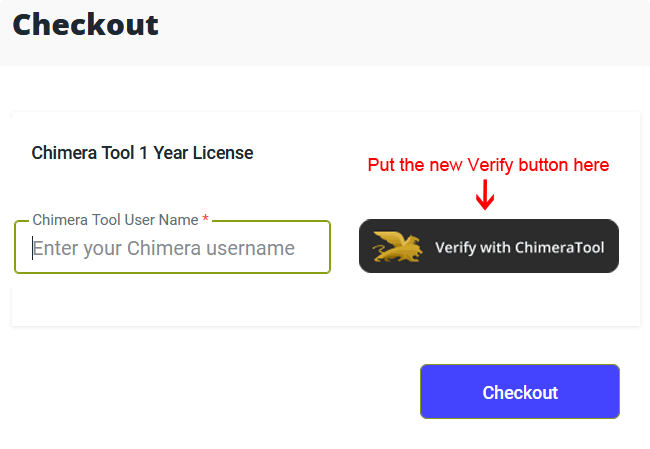
If your layout looks like like this than your Checkout button tag looks like the following:
Then you need this button disabled by default, and only enable it upon successful user authentication, like so:
The user journey will be the following
First, the user selects their desired Chimera license or credits option on your reseller website.
After selecting options to buy, the user needs to enter their username, then, the user clicks on the "Verify with ChimeraTool" button to open authentication popup window.
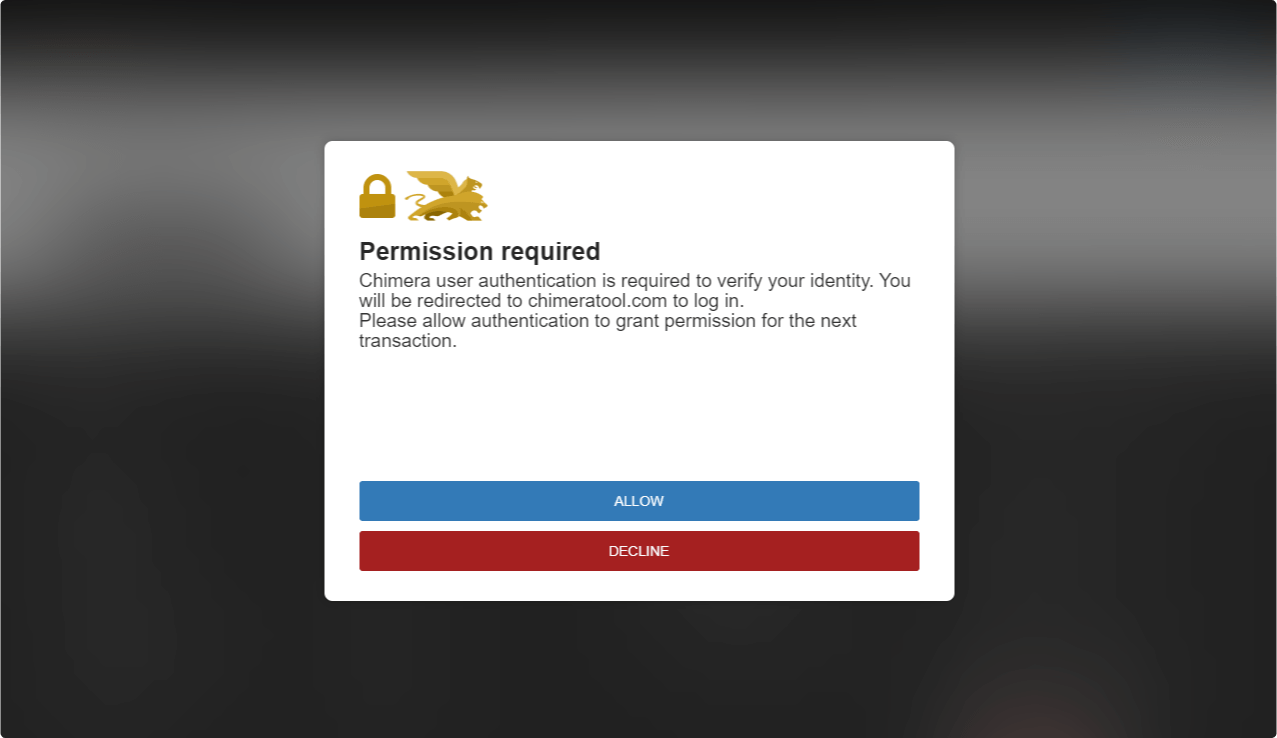
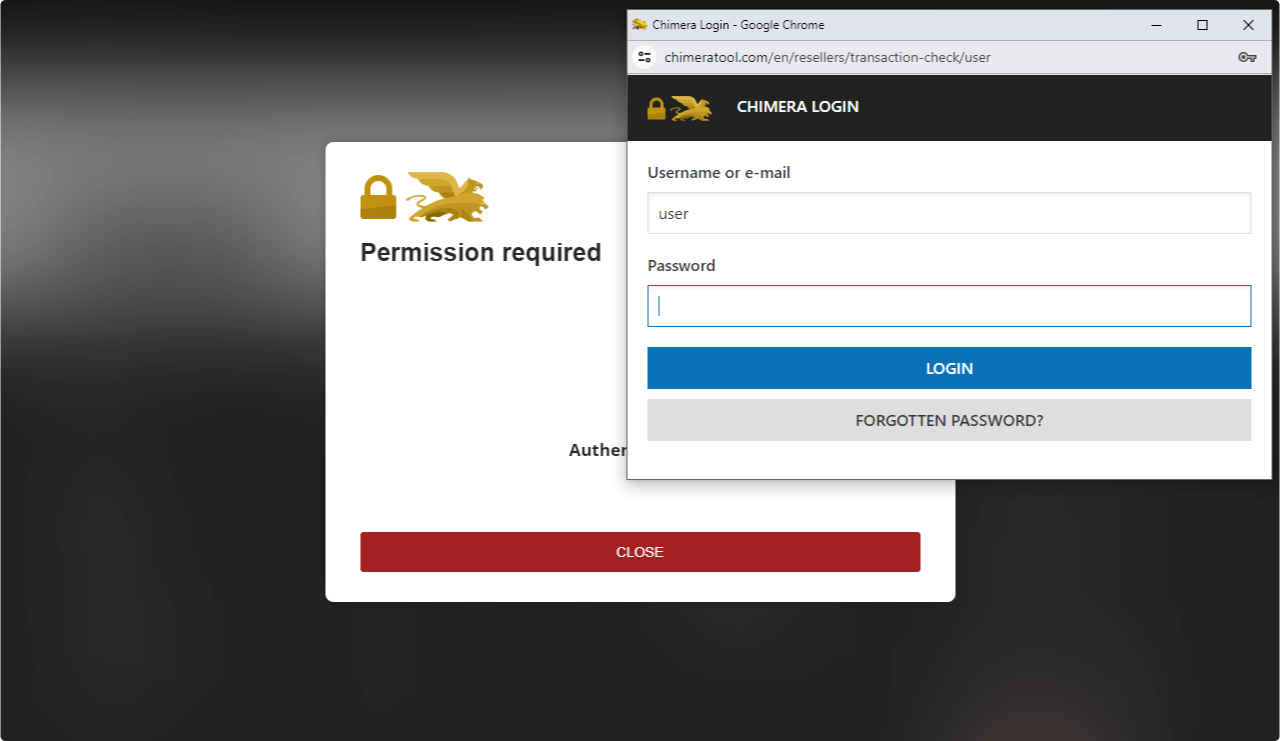
Upon clicking Allow, the user will be granted with a login popup window at chimeratool.com.cn where they can login:
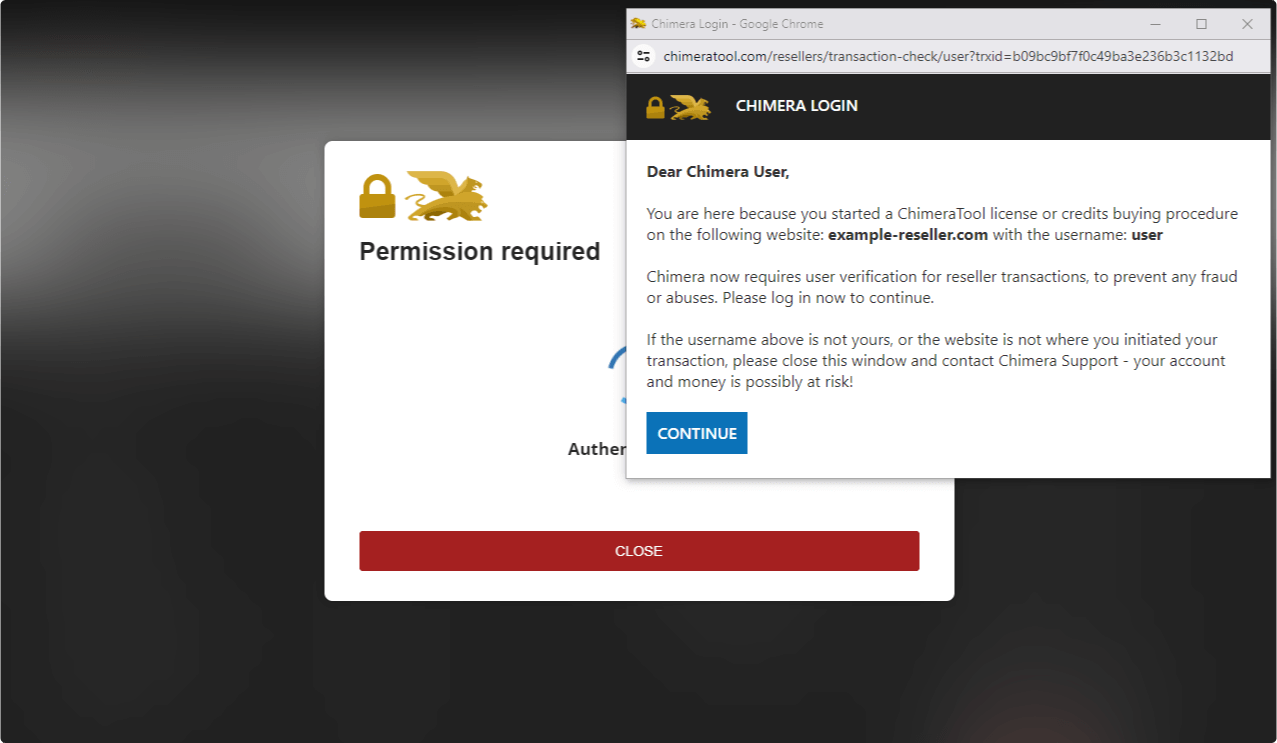
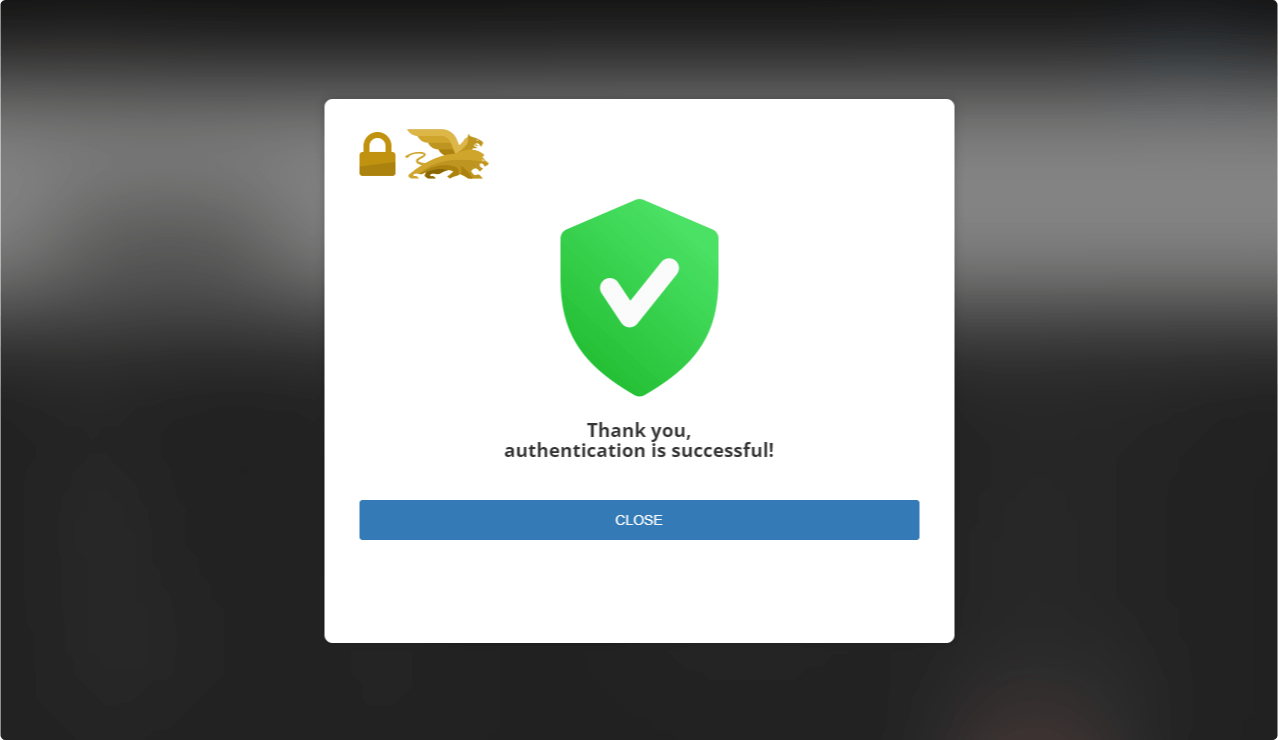
After successful user login, the popup window will close:
Now the user may finish purchase and make the payment on your website. The transaction will be authorized and the license/credit transfer will be completed from reseller account to user account promptly.
If the user already logged in, the authentication will be successful automatically after the user allowed the permission for the authentication process.
In case of authentication failure the user will see the following error:
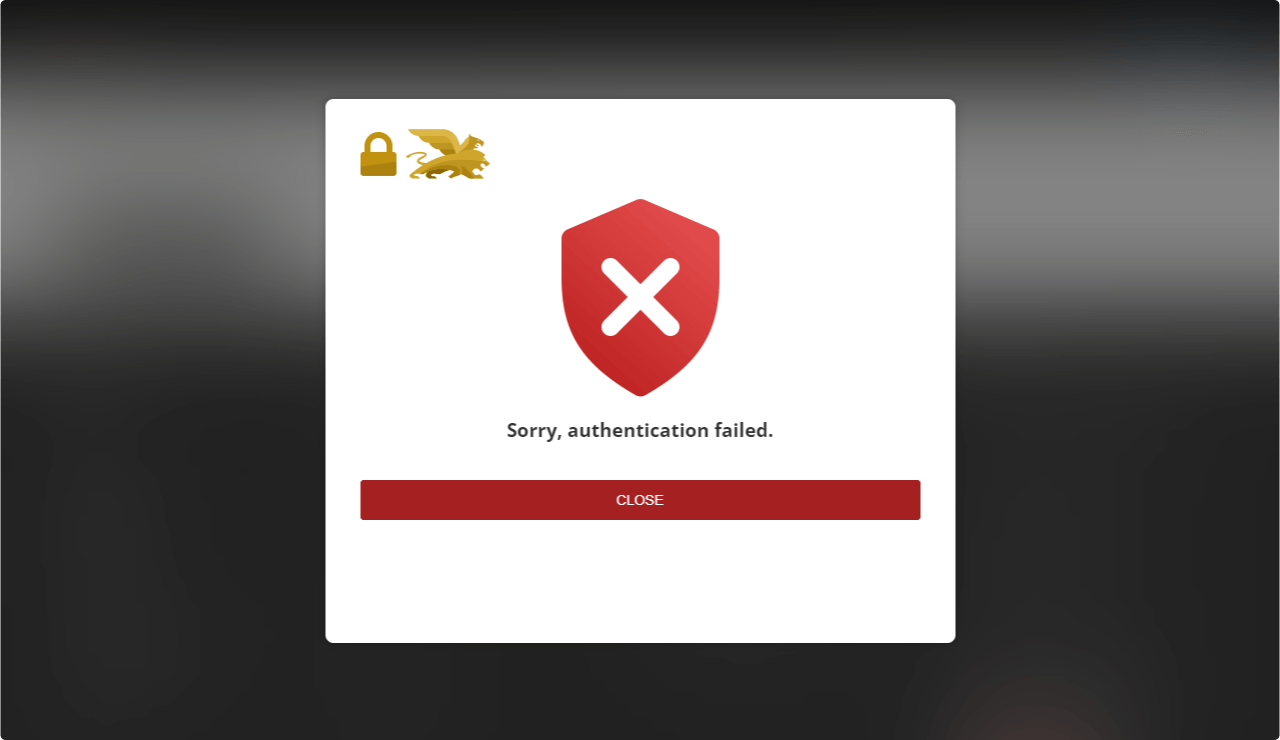
In this case, the credit/license transfer will remain in a pending status.
Contact support if you need any help, we will help you gladly.
FAQ
Check Frequently Asked Questions about ChimeraTool features!
Video Guide
Watch our YouTube video tutorials about ChimeraTool features!
Martview forum
Martview is not our official forum but it can bring help to all our customers, since the questions asked are answered by professionally relevant users and administrators there.
Test Points Library
A continuously updated collection of Test Point photos, PCB Diagrams and Blueprints to help everyone easily find the test point pins on smartphone motherboards - all at one place!
GSMHosting forum
This is our official English-language forum. We recommend it for all of our users, because many problems and errors have been described and answered here over the years.
 Popular Helps
 Popular Tags
