









Samsung Exynos devices: Read codes for network unlock
Some smart devices are carrier locked, which means they can only be used with SIM cards of the original service provider / carrier - otherwise a network unlock code or network PIN code is requested to be entered, the device cannot be used without that.
This document created at Jul 28, 2023, 11:44:00 AM and modified at Nov 10, 2026, 5:48:24 AM.
 Back

In this guide we will go through the steps of reading the network unlock code and other codes from a Samsung Exynos device, allowing you to remove network lock with only a few simple steps in Chimera Tool - which can read them from your device.
STEPS:
First, put the device in EUB mode by shorting the test point pins on the device. If you don't know how to put your phone into EUB mode, visit our Test Point collection here: https://chimeratool.com.cn/test-points. Once done, Chimera will recognize the device and the next steps will run in Exynos mode.
Click on the Network Factory Reset tab, then on Read Codes. Select the latest method and wait until Chimera reads the codes.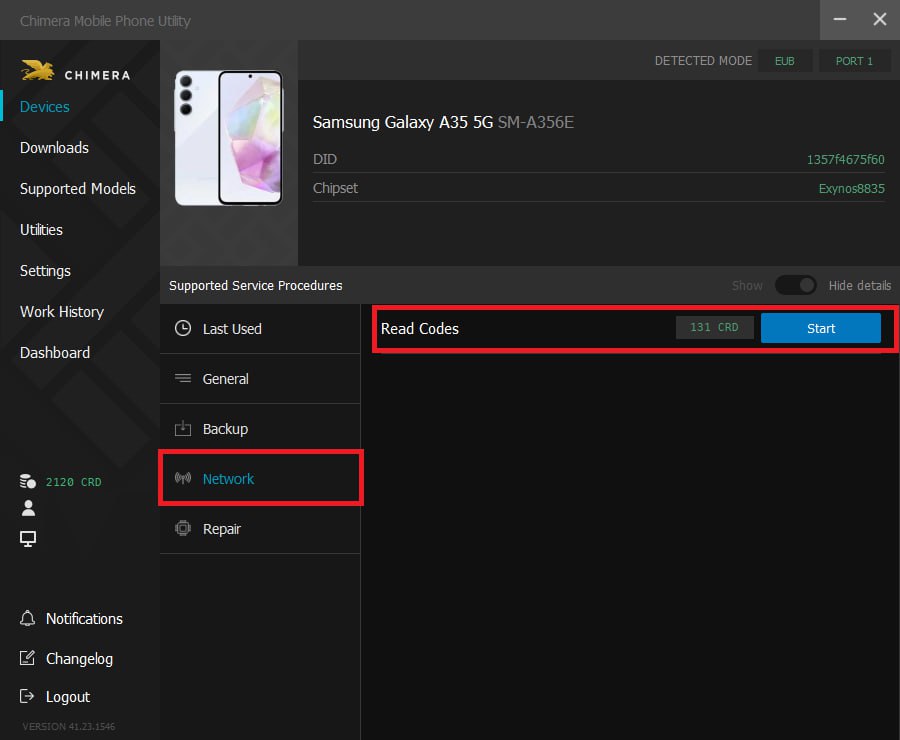 You will get various codes: the Master lock code and the Network unlock code. The Master lock code is needed after the 3 unsuccessful unlock attempts when your device asks for Network PUK or Master unlock code. The Network unlock code is needed when your device asks for Network PIN code or Network unlock code.
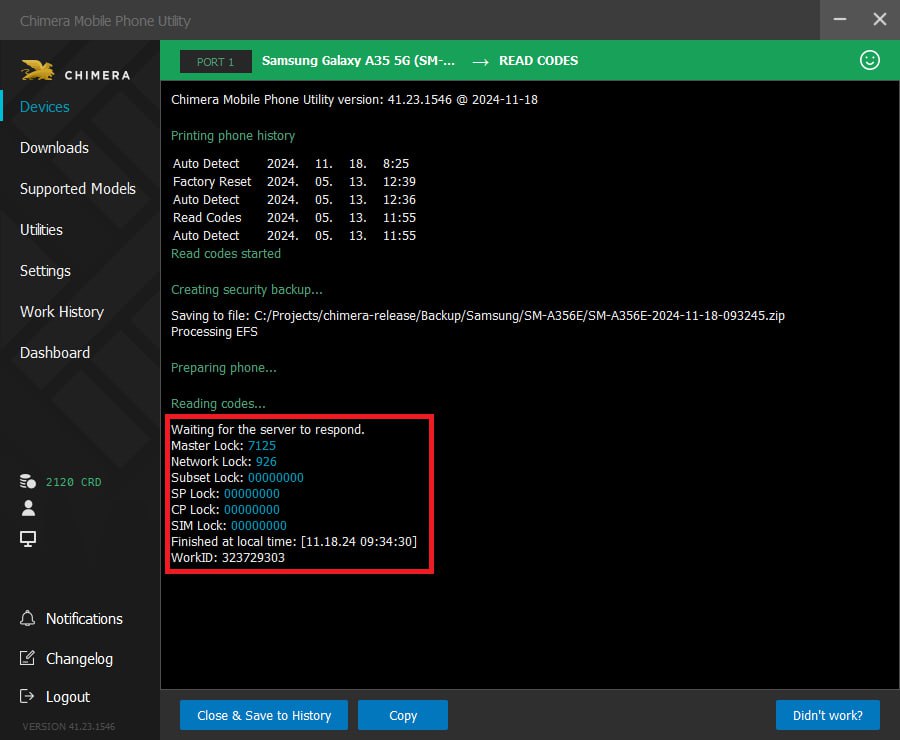 Select the Network lock code option and wait for results to appear. The next time you insert a SIM card of another carrier, you will be requested to enter this code to remove network lock. This will be requested only once, when device turns on the first time with a new SIM card from a different carrier.
FAQ
Check Frequently Asked Questions about ChimeraTool features!
Video Guide
Watch our YouTube video tutorials about ChimeraTool features!
Martview forum
Martview is not our official forum but it can bring help to all our customers, since the questions asked are answered by professionally relevant users and administrators there.
Test Points Library
A continuously updated collection of Test Point photos, PCB Diagrams and Blueprints to help everyone easily find the test point pins on smartphone motherboards - all at one place!
GSMHosting forum
This is our official English-language forum. We recommend it for all of our users, because many problems and errors have been described and answered here over the years.
 Popular Helps
 Popular Tags
