









How to use the ChimeraTool Authenticator?
The Chimera authenticator is a security smart card and a smart card reader which allows our software to authenticate the user directly to the server without needing of a password.
This document created at Sep 12, 2016, 5:47:51 PM and modified at Aug 30, 2026, 4:08:01 AM.
 Back
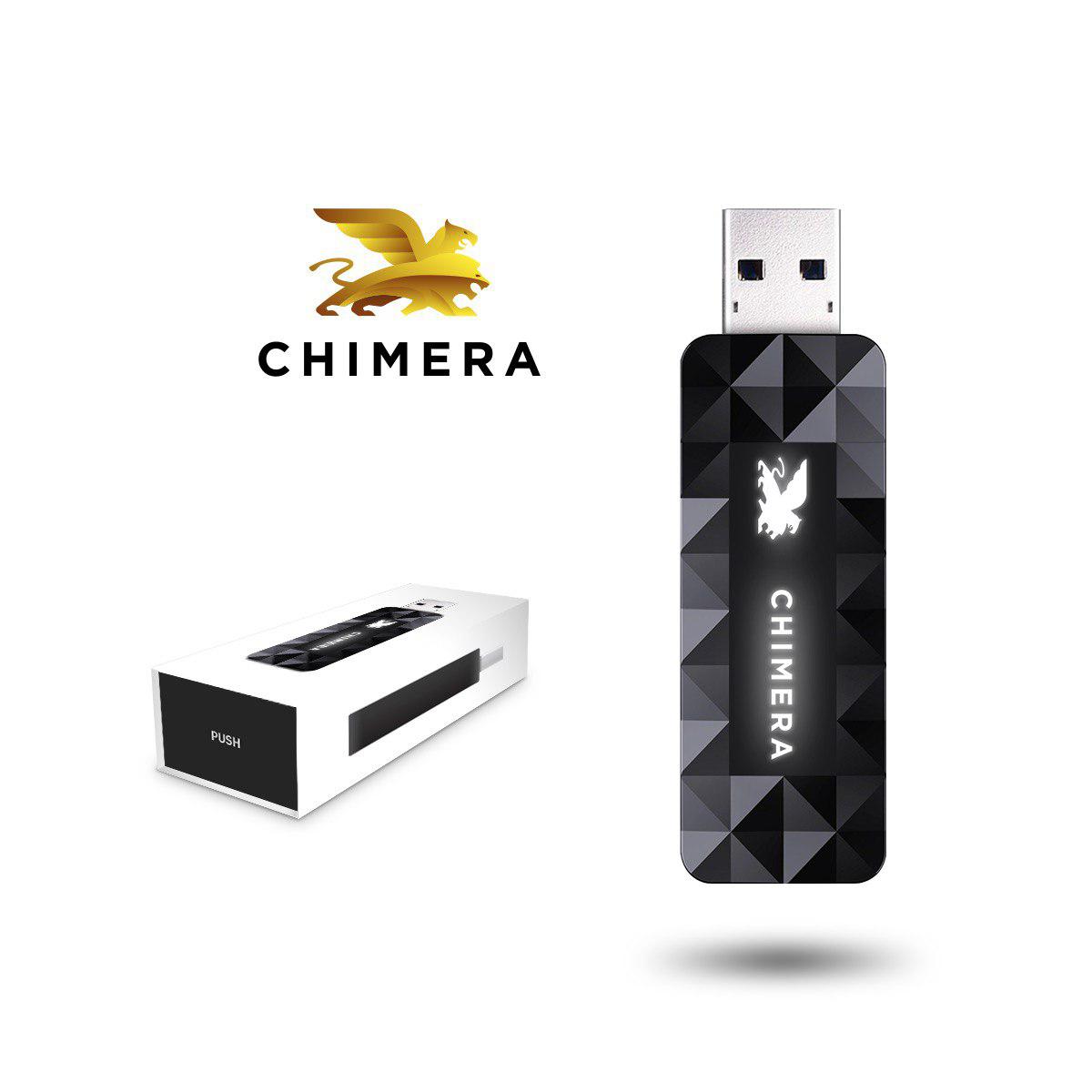
Chimera Authenticator features
There are two main functions of this device:
- Log in without a username/password!
If the authenticator is registered and connected, the Chimeratool software will allow you to log in using the authenticator instead of typing in the username/password. This protects you from key-loggers, and also you do not have to store or remember your password to use Chimeratool.
- Carry your licence with you!
Until now, your licences have all been attached to your PC. You could only use the Chimeratool software on that one particular PC.
Now, you can attach licences to your PC or a Chimera Authenticator. You can use a licence attached to your authenticator on any PC if you log in with the authenticator and not by using your username/password.
How do I use the Authenticator?
- Register the authenticator during the first use:
When you get your authenticator, connect it to your PC, and start up ChimeraTool. On the login dialogue, you should see the 'Login with Authenticator' section become enabled. Press it!
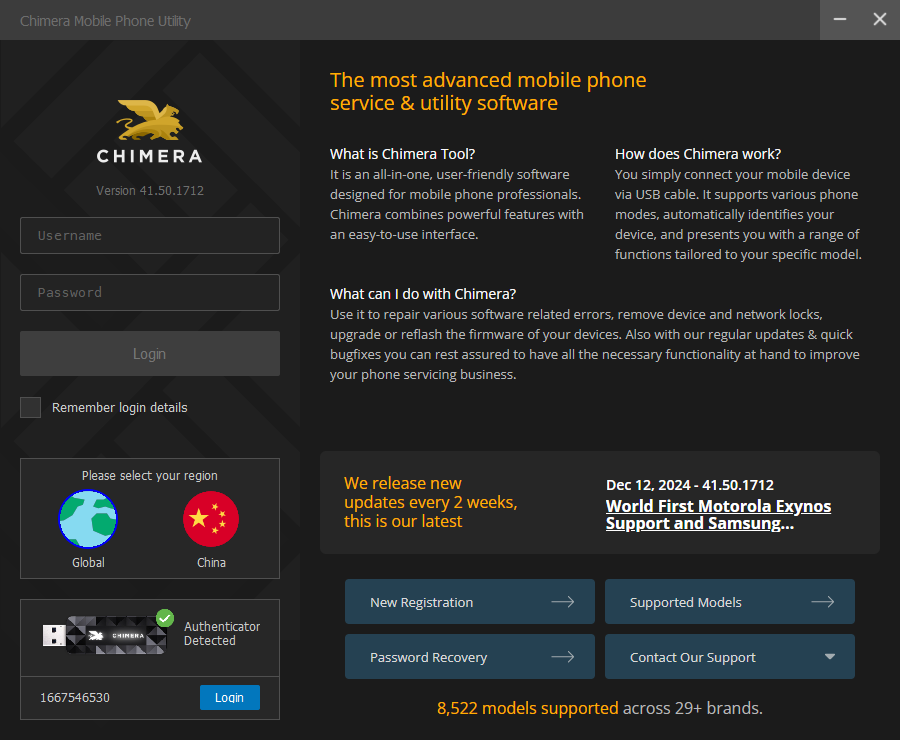
The first time this will display a dialog that outlines the process in which you can register the authenticator. Registration is the only time your username/password will be required while using the authenticator, and you only need to register once. Fill in your username/password, and then click on 'Register'. Any licence that comes with your authenticator will be automatically added to your account and attached to your authenticator.
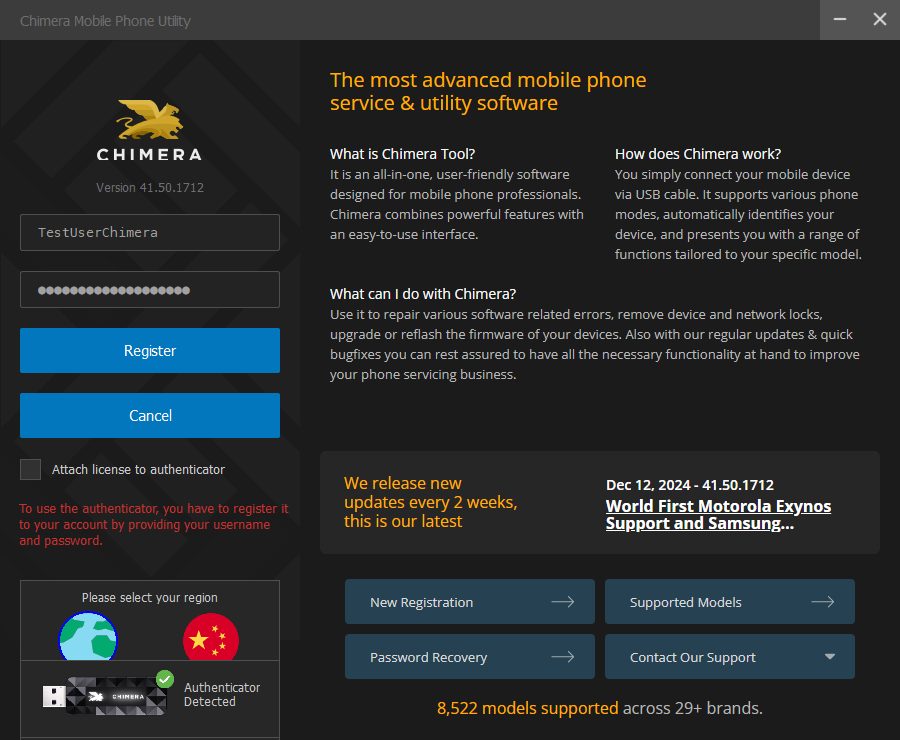
The registration will take a few seconds. After registration, the dialogue will switch back to the usual login screen and will proceed to log you in with your authenticator.
- Log in with the authenticator:
Connect the authenticator to the PC. Within the login dialogue, you should see the 'Login with Authenticator' section become enabled. Click on it to log in with the authenticator.
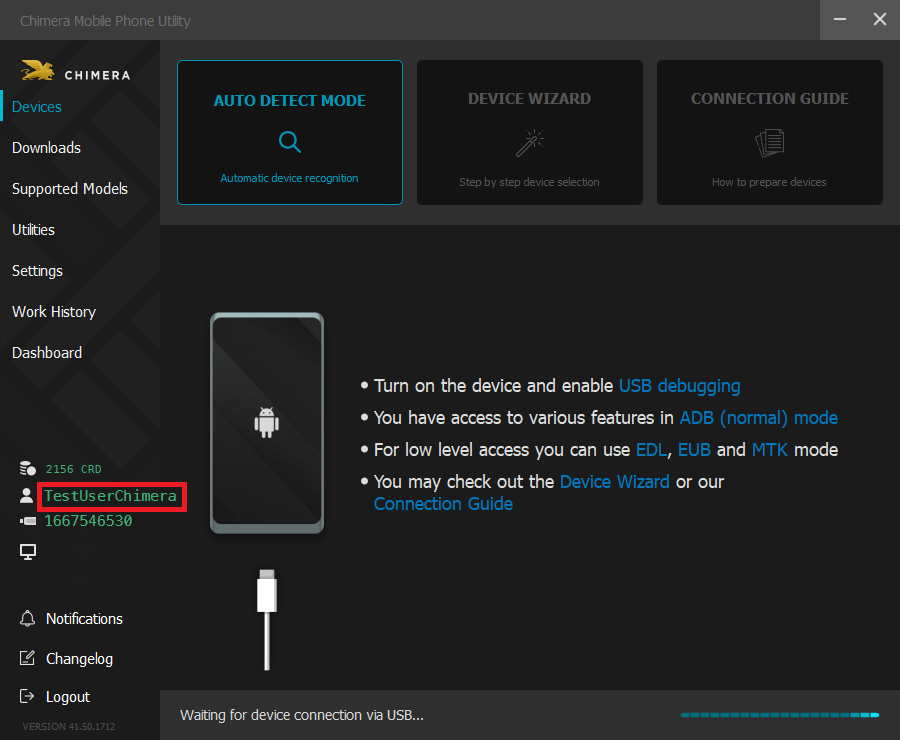
After a successful login, you can verify that you are logged in with the authenticator by looking at the icon and text on the bottom right side of the program. When you are logged in with the authenticator, you will see a card icon with the authenticator card ID displayed next to your username.
FAQ:
Q: If I have an authenticator and a licence attached to it, can I use my licence on multiple computers during the same time?
A: Not at the same time! You can use your licence attached to the authenticator on the PC to which the authenticator is connected to. You can move your authenticator to another PC, but disconnecting it while you are logged in will cause the ChimeraTool on that current PC to log out.
Q: Can I use a licence with the username/password and the authenticator at the same time?
A: No, a licence is attached to either a PC or an authenticator and not both. If it is attached to the PC you can use it by logging in on that PC with the username/password. If it's attached to the authenticator, you can use it by logging in on any PC using the authenticator.
Q: Can I connect more than one licence to my authenticator?
A: Yes, it is just like connecting licences to PCs. But be aware that there is no reason to have two "All Modules" licences on one authenticator (or PC).
Q: I have a licence but I can not run procedures when logging in with my authenticator.
A: Your licence is probably attached to your PC. Check if your licence is attached to your authenticator. If not, go to the Licences menu on chimeratool.com.cn and re-attach your licence to the authenticator.
Q: I have the authenticator connected, but the 'Login with Authenticator' button remains disabled (grey). What should I do?
A: Wait for Windows to install the drivers for the smart card reader. (Windows may try to install drivers for the smart card too, but only the smart card reader drivers are required). If the driver installation is successful, but the button is still disabled, try to connect the authenticator directly to the PC and not a hub or extender cable.
Q: Can I use my own smart card reader with the card in the authenticator?
A: Yes, but removing the card from the authenticator may damage it. Take extra care when removing! Any reader with JCOP 2.4 compatibility that supports T=0 protocol should work.
Q: Can I unregister an authenticator from my account?
A: Yes, there is a way to unregister it in the Chimeratool program in the account/authenticator menu. All licences attached to the authenticator will be disconnected – you cannot transfer licences between accounts, not even with the authenticator!
FAQ
Check Frequently Asked Questions about ChimeraTool features!
Video Guide
Watch our YouTube video tutorials about ChimeraTool features!
Martview forum
Martview is not our official forum but it can bring help to all our customers, since the questions asked are answered by professionally relevant users and administrators there.
Test Points Library
A continuously updated collection of Test Point photos, PCB Diagrams and Blueprints to help everyone easily find the test point pins on smartphone motherboards - all at one place!
GSMHosting forum
This is our official English-language forum. We recommend it for all of our users, because many problems and errors have been described and answered here over the years.
 Popular Helps
 Popular Tags
